Pages/Blogs
After successfully registering your subdomain with us, you are taken to the Pages/Blogs Portal.
In this portal you can allow to create Pages & Blogs for your websites.
Video How-To
Pages list:
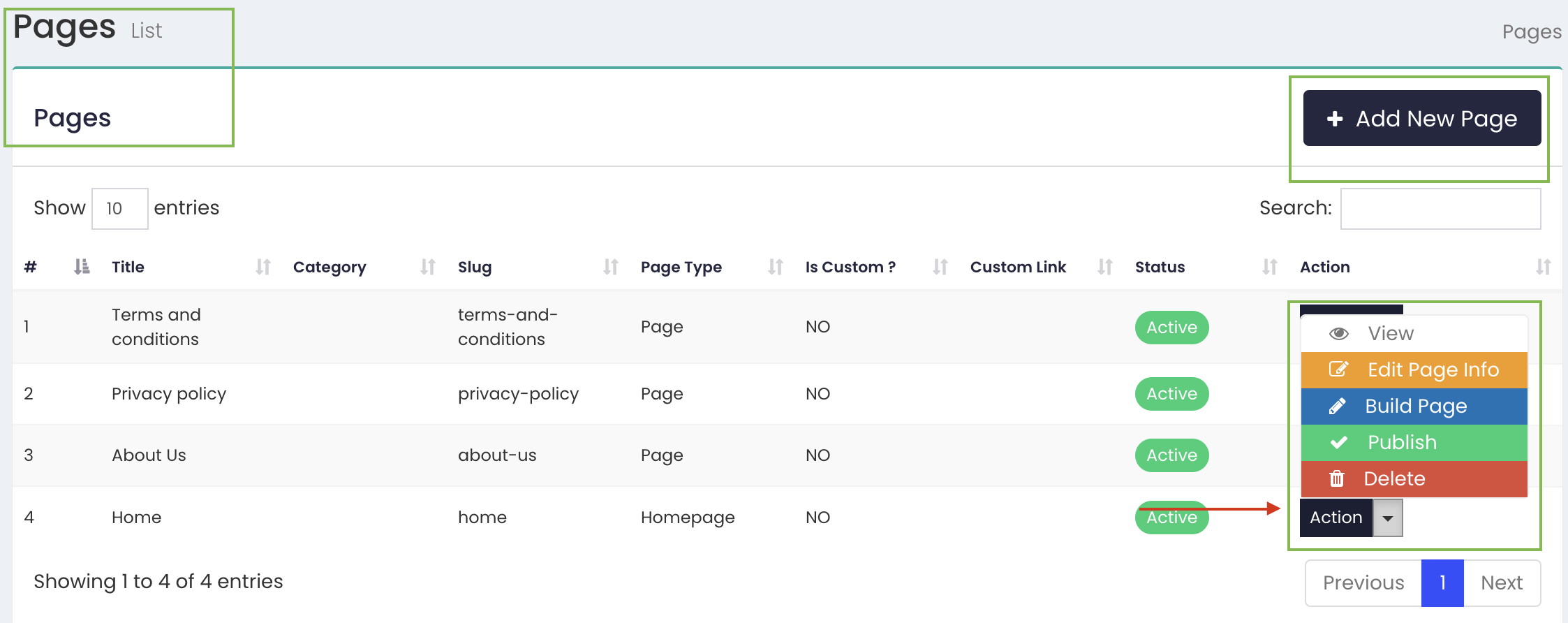
This section involves 'New Page Creation' option and created pages list. There are four icons besides created pages in pages list.
- From the 'VIEW' icon user is able to view created page.
- From the 'EDIT' icon user is able to edit created page.
- From the 'DELETE' icon user can delete created page.
- From the 'BUILDER' icon user can navigate on builder.
Add New Page:
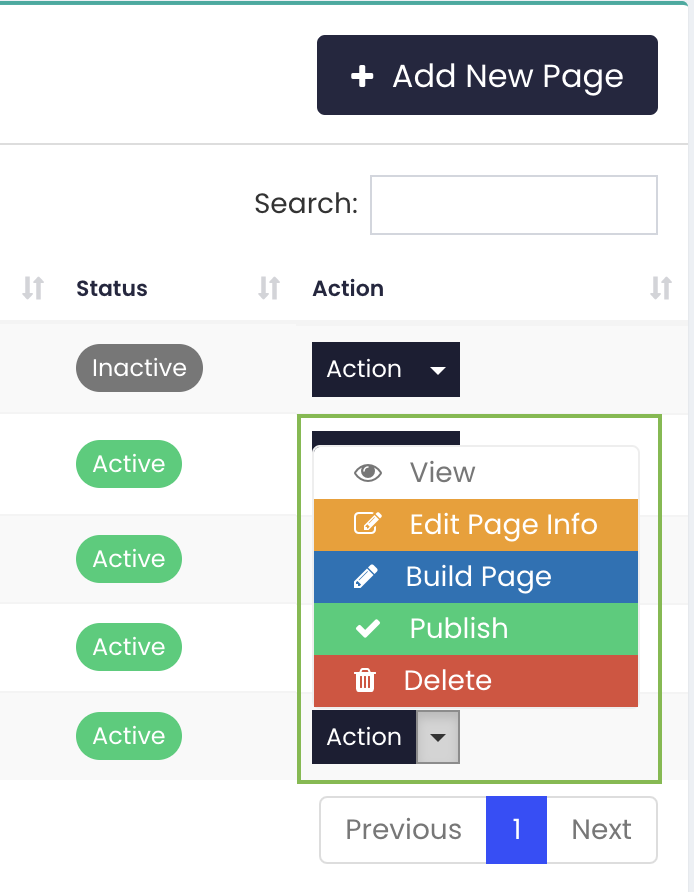
This section allow to create page form, as shown below. Action button can be used to View, Edit Page Info, Build Page, Publish and Delete.
1) Add New Page:
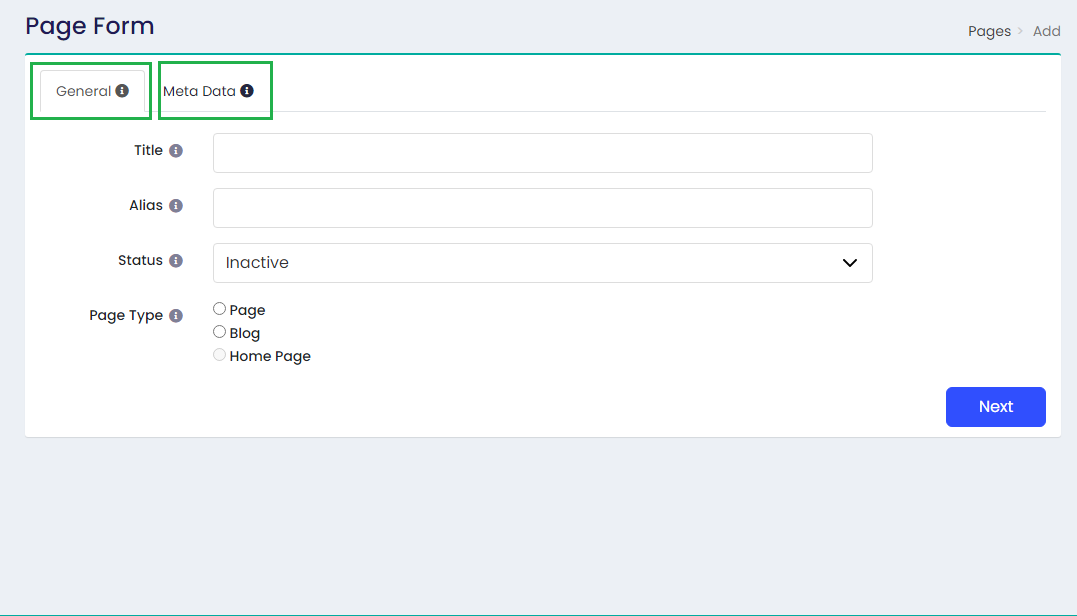
Click on Add New Page brings up a form. This tab includes Title, Alias, Status & Page Type.
** **
Title
This field is for page name. User can add page name by using this field.
Alias
****Alias is the URL of the page. By default one will be created for you. If you decide to choose another one, you can override and save it.
Status
****This field is having two drop down options: 'Active' & 'Inactive' for Page. Inactive work could be saved as draft mode for the first time.
Page Type
- This include three toggle button: 'Page', 'Blog' & 'Home Page'.
- Selecting 'Blog' toggle there are two fields are shown: Blog Image & 'Blog Category'.
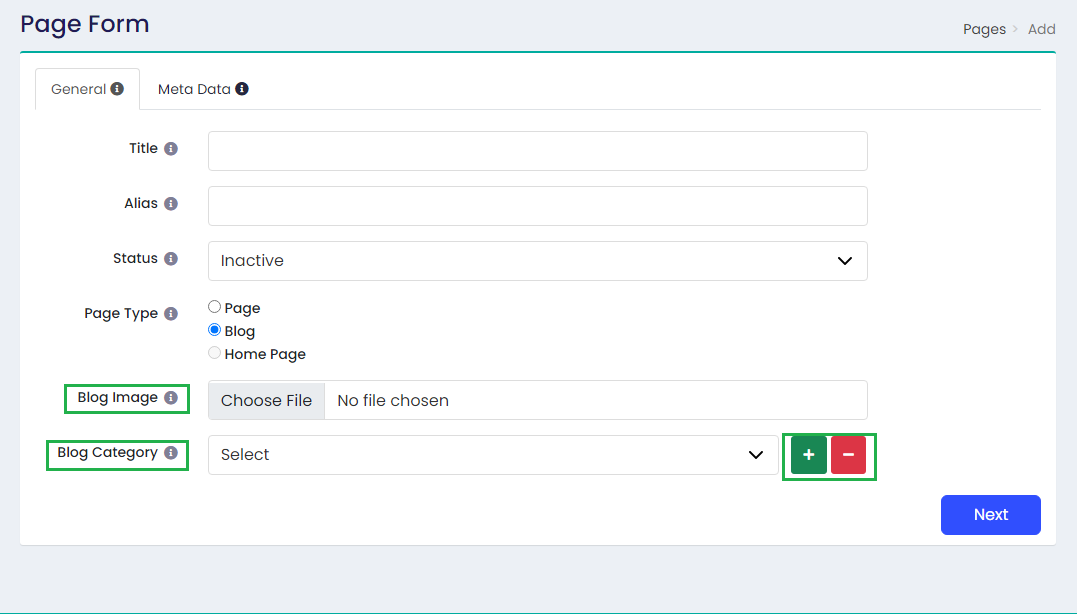
Blog Image: From this field user can upload blog's Image.
Blog Category:
- This field includes drop down for blog's category.
- There are '+' & '-' icons beside 'blog category' field.
- [+] using this user can add 'Add New blog Category'
- [-] using this user can delete blog category.
2) Meta Data:
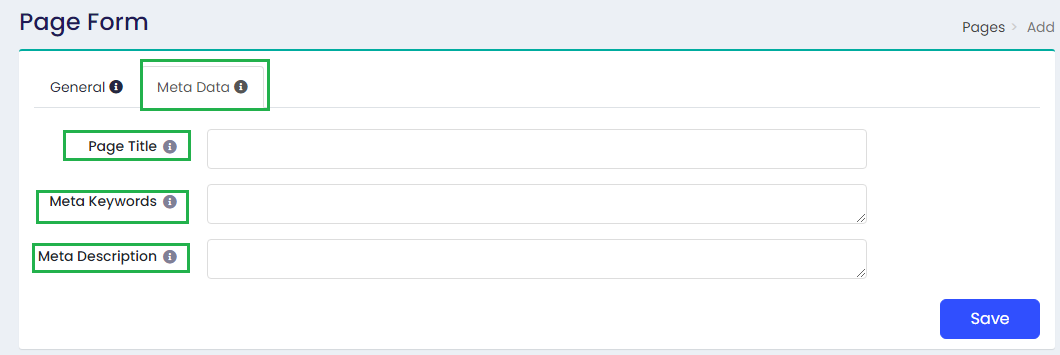
This tab includes Page Title, Meta Keywords & Meta Description.
** **
Page Title
This is the title of the page as chosen by the author. It is displayed in the tab title of the browser.
Meta Keywords
Meta Keywords are a specific type of meta tag and help tell search engines what is the topic of the page.
Meta Description
Meta descriptions provide a description, or summary, of the page it relates to. It should describe the contents of the page to which it is attributed.
** **
3) Actions
For any page, blog, there is an Action button associated with it as shown below: **
**
**View - **After working on the final page edits, you can click on view to see how it would look to the end user.
**Edit Page Info: **This brings up the page form (refer Add New Page above).
**Build Page: **This option is NOT used for blogs and only used for pages that you want to build using the drag/drop editor. Clicking on this page will open the page builder.
**Publish: **Any changes done on the Build Page option needs to be published before they become live on the main site. If the changes are not reflected on your main site, please make sure to click the publish button.
**Delete: **A page can be deleted if it is no longer needed.