Embed Content In Your Website
Users can embed the entire course in your existing website through a URL or an iframe provided to you.
For this functionality, login to admin panel and navigate to Manage Content from the left hand side menu. Regardless of the content type (Video, Practice Exam, Flashcard), the process remains the same for all.
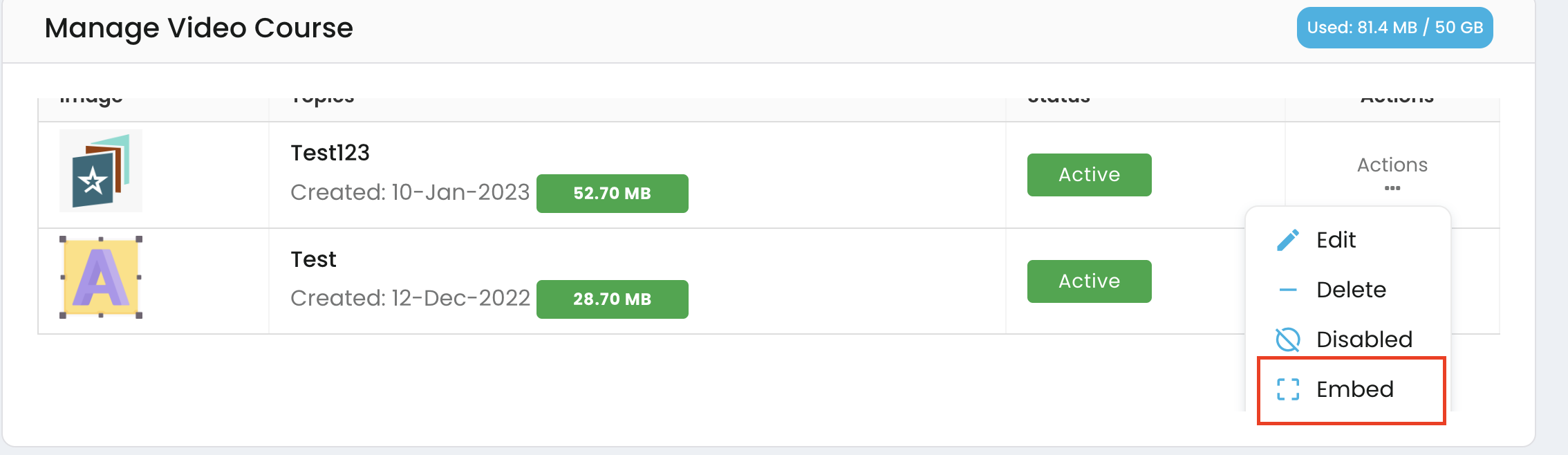
Under Manage Content, click on Video Courses. Under Actions click on the three dots, followed by Embed button as shown below.
There are three options that a user can choose from based on their needs as shown below:
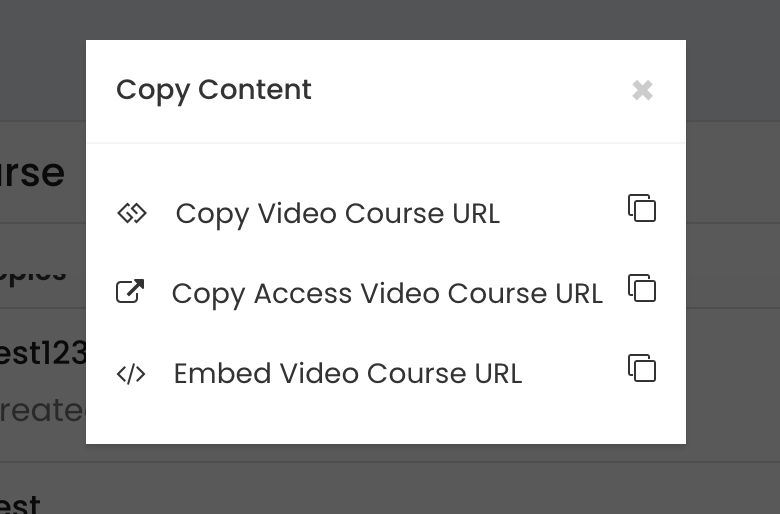
- Copy Video Course URL: This option should be selected if you want to copy the listing of the course on your website. This comes in with the purchase button. Use cases for this option:
- If you want to provide course details on your existing website
- Your website doesn't allow payments
- You want to track analytics of your course
- You manage multiple websites and want to funnel all purchases through one common platform
-
Copy Access Video Course URL: The option should be selected if you want a stand alone page of the course that takes directly to the Video Course content. Good use case is if you want to give access to your users once they have moved past your paywall or created an account with your existing website.
-
Embed Video Course URL: This option should be selected if you want to embed an iframe in your existing website. Good use case is if you are using Wordpress.
Example code:
<iframe src="<a href="https://hamansharma.reviewnprep.io/embed-video-course/7557cfec9963ab3015073de458268e39" class="redactor-autoparser-object">[https://hamansharma.reviewnprep.io/embed-video-course/7557cfec9963ab3015073de458268e39</a>"](https://hamansharma.reviewnprep.io/embed-video-course/7557cfec9963ab3015073de458268e39</a>") style="width:100%" height="400"></iframe>