Create Flashcard Topic
-
To create a flashcard topic, navigate to Flashcards on your Instructor Dashboard, and click on Create New.
-
Start by adding the following:
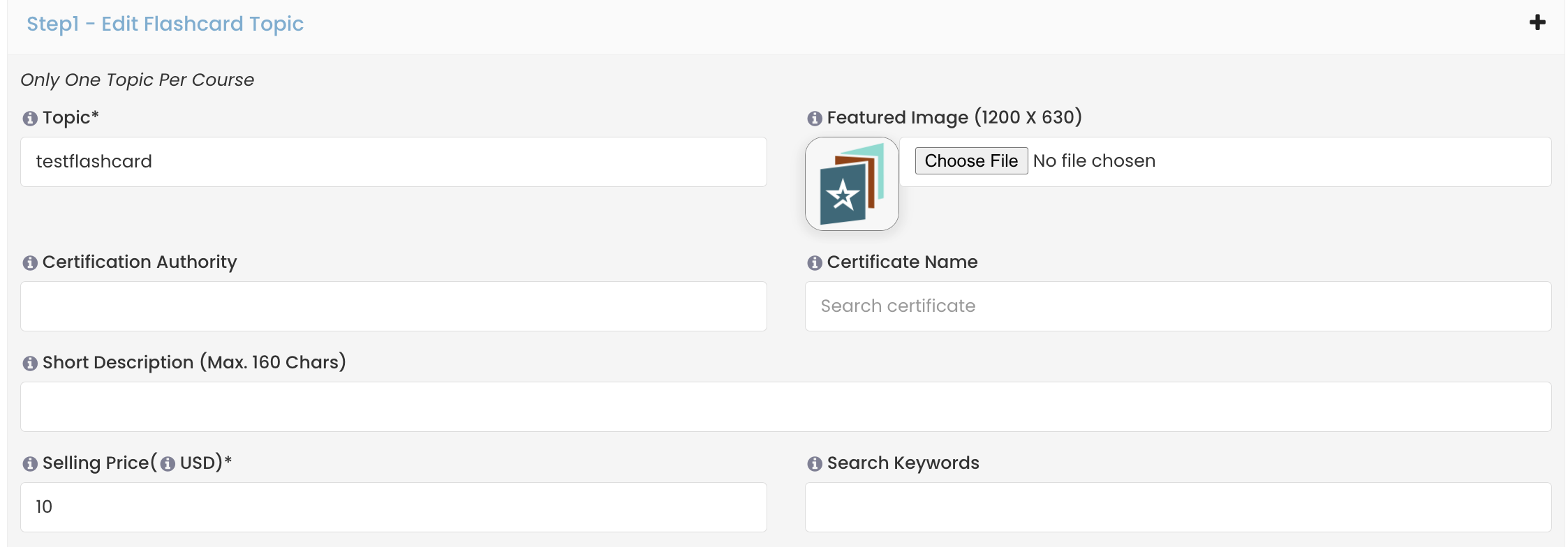
(a) Topic [The name that will appear upon searching for a flashcard]
(b) Featured Image [It should describe the topic accurately with size under 500 KB]
(c) Certification Authority [If applicable - Pick one from the drop-down menu/ Add on your own]
(d) Certification Name [If applicable - Pick one from the drop-down menu/ Add on your own]
(e)** Short Description** [Maximum 160 words]
(f) Selling Price ($) [Set your own selling price (Our recommendation: minimum $2.99 for a flashcard)]
(g) Search Keywords [Multiple keywords can be added separated by commas]
3. Structuring Your Flashcard
This is where you optimally organize the flashcard content. In order to set it apart, strategize your content in a way that the learners can utilize it to the best of their capabilities.
(a) **Course Description **[Detailed version of the course]
(b) Level [Choose from Beginner/ Intermediate/ Expert/ All Levels]
(c) Learning Objective [Certification details offered by the Certification Authority]
(d) Welcome Email to Student [It is sent to the buyer upon purchasing your course]
- Take your time to fill in all the details. Once done, click on Create Flashcard Topic.
- You have successfully created a flashcard topic.
NOTE: If you want to copy the course landing page, you can go to the main course listing page and under actions, click Copy. This will duplicate the course landing page only and not the content.