Page Builder Intro (Old V1.0)
We are updating our PageBuilder and a newer, easy to use version 2.0 is enabled by default as beta test. We will retain the old documentation and have added new documentation on how to use the new version.
Old Page Builder which is a** stable release **can be accessed using a Toggle in the header as shown below:

Similarly, the new page builder can be accessed using the toggle in the header as shown below:**

**
Below is the documentation for the old page builder
Page Builder is built on top of open sourced GrapeJs. The project is active on GitHub if anyone wants to make changes to the code.
Using this option, you can create Pages for your website. Check this help document on how to add a new page.
Top Icons
From Left Hand Side there are three icons.
- First is for Desktop view, Second is for iPad view & third is for mobile view.
- From Right Hand Side there are fourteen icons.
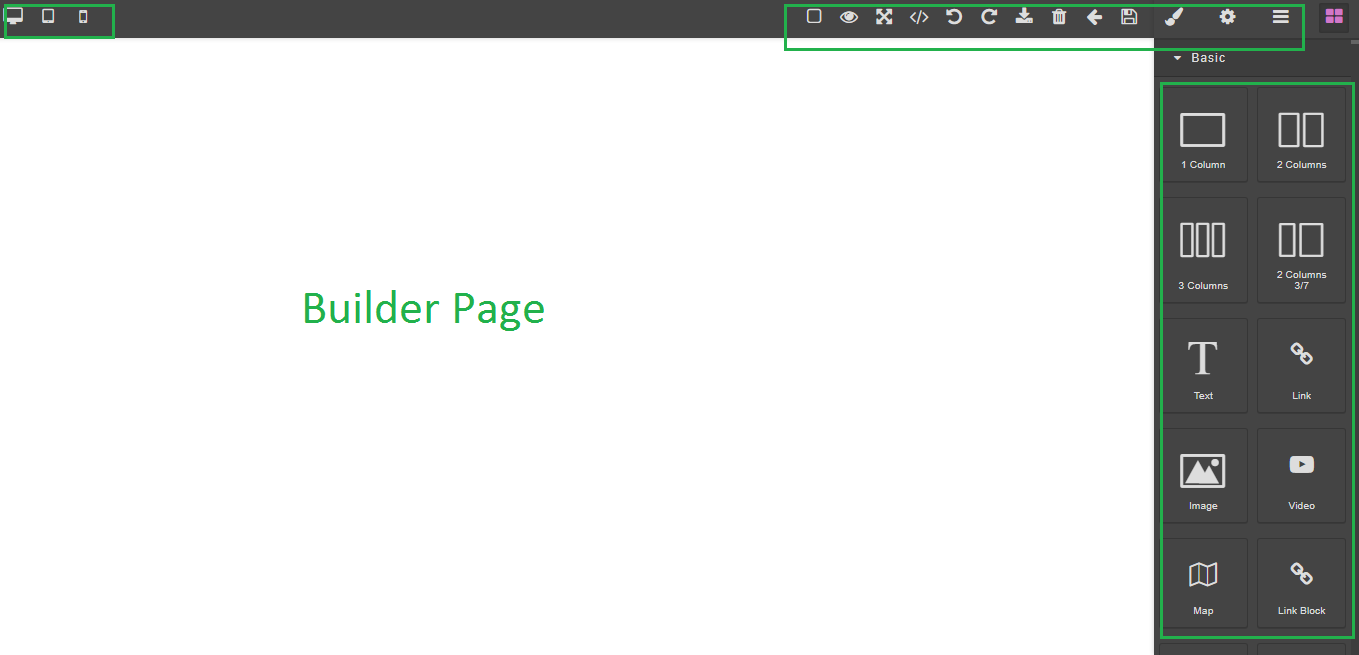
- 'View Components'. User can see components of builder page. This comes in handy when you use a pre-made template.
- 'Preview'. After creating builder user can able to see that preview of any template.
- 'Full Screen'. User can see builder page in full screen view.
- 'View Code'. By using this icon user can able to see the code of web page.
- 'Undo'. By using this user can undo the recent action on the web page.
- 'Repeat'. User can repeat the action after delete it.
- 'Import'. By using this user can import any code. Check this link for importing your custom pages.
- 'Delete'. User can 'Delete' recent action on builder page.
- 'Back to listing'. By tapping on this user is navigating on Page List.
- 'Save Page'. From here user is able to save the builder page which is created.
- 'Open style manager'. By using this user can decorate the page.
- 'Settings'. This is component settings
- 'Open layer manager'. This is using for 'Body', 'Div', 'Text' in web page.
- 'Open Blocks'. By using this user can see list of templates for page builder.
Icons on the Left Side
Based on your needs, you can drag and drop any of the icon in the blank canvas and start building.
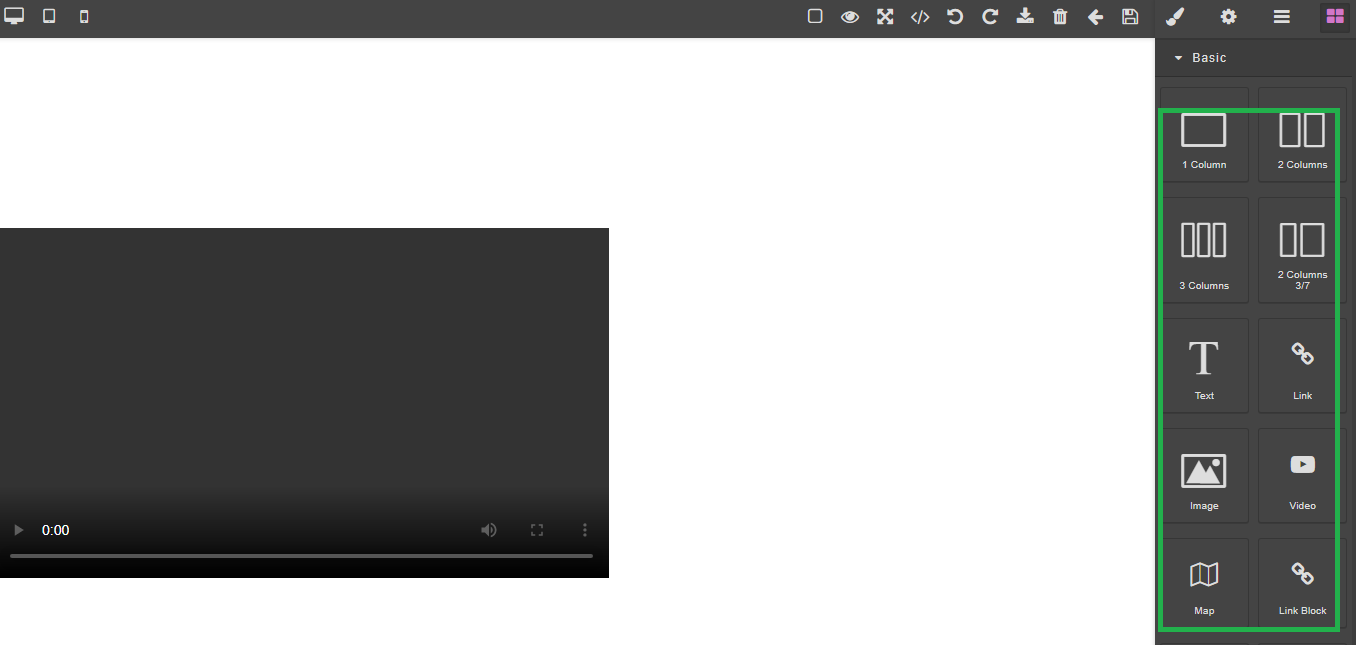
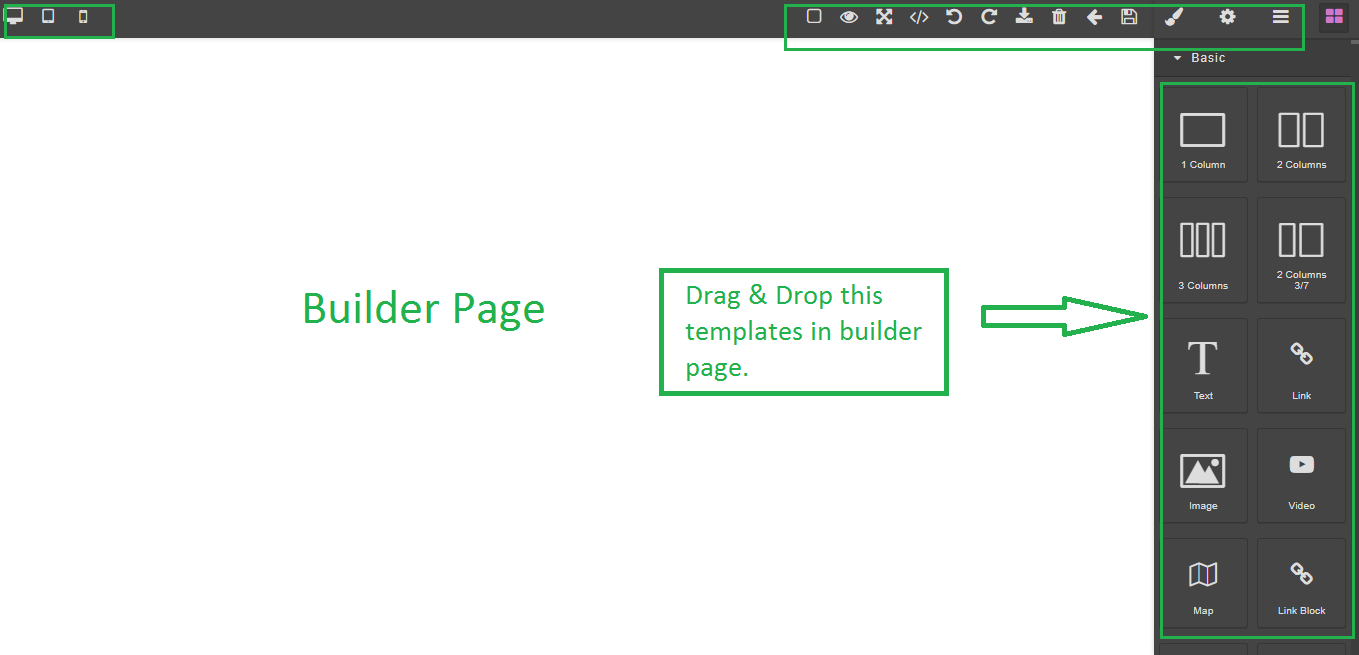
In Builder Page user can create page using different templates.
- By using '1 column', '2 column', '3 columns' user can add column in page builder.
- By using 'Text', 'Link', Image', 'Video', 'Map', 'Link Block', 'Quote' & 'Text section' user can add add different modules in page builder.