Connect Telegram
Regardless if you're adding a Group or a Channel, you need to make ReviewNPrep_bot an admin in both cases.
There are slight differences on adding the bot to the group or channel, but the overall process remains the same.
Group
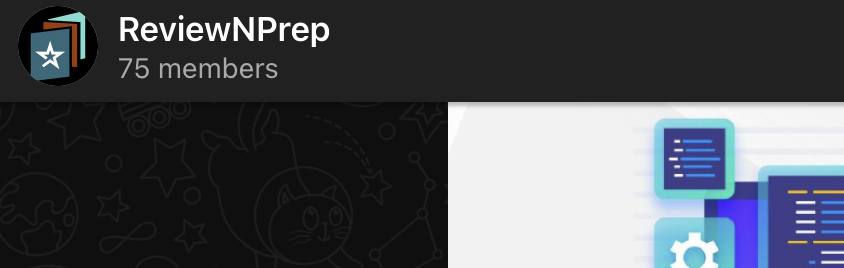
- Go to your Telegram Group and click on "Members" at the top.
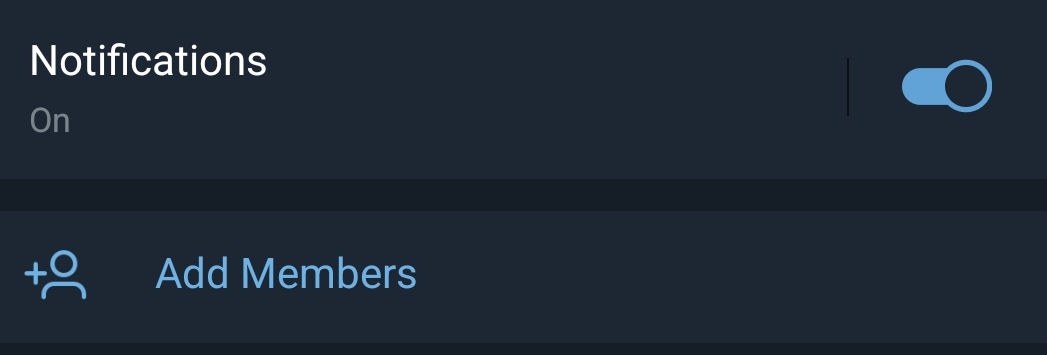
- Click on Add member
- Search for ReviewNPrep_bot and select ****ReviewNPrep Bot once it shows up.
4. Once you've added the bot as member, tap on it and hold it.
-
From the options, select "Promote to admin".
-
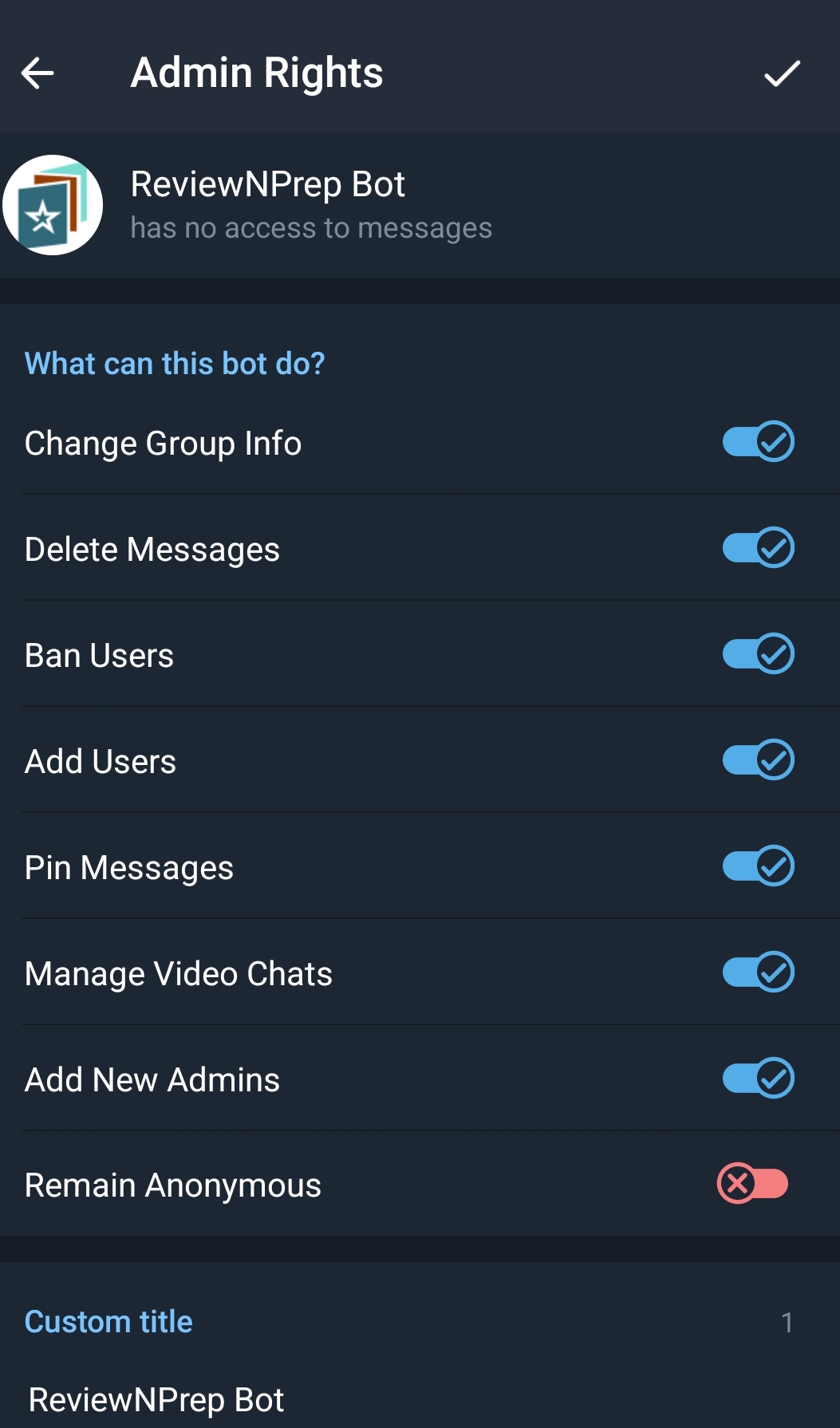
Save the settings as shown below by clicking on the top right check icon.
Channel
****Go to your Telegram Channel and click on "Subscribers" at the top.
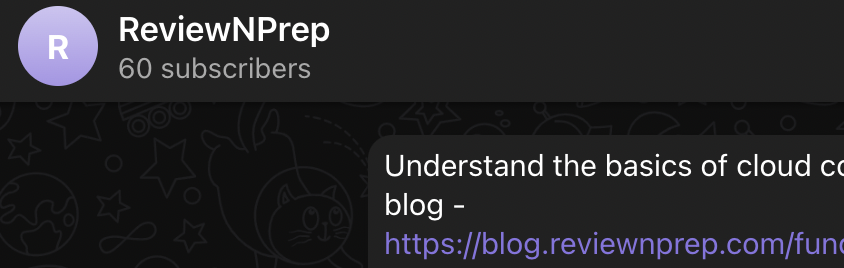
Follow the same steps as above for the channel.
Admin Settings
Once you have completed the prerequisites, navigate back to the admin portal. From here, Social Media in the left hand side menu. Click on Account, followed by Add New. Select Telegram
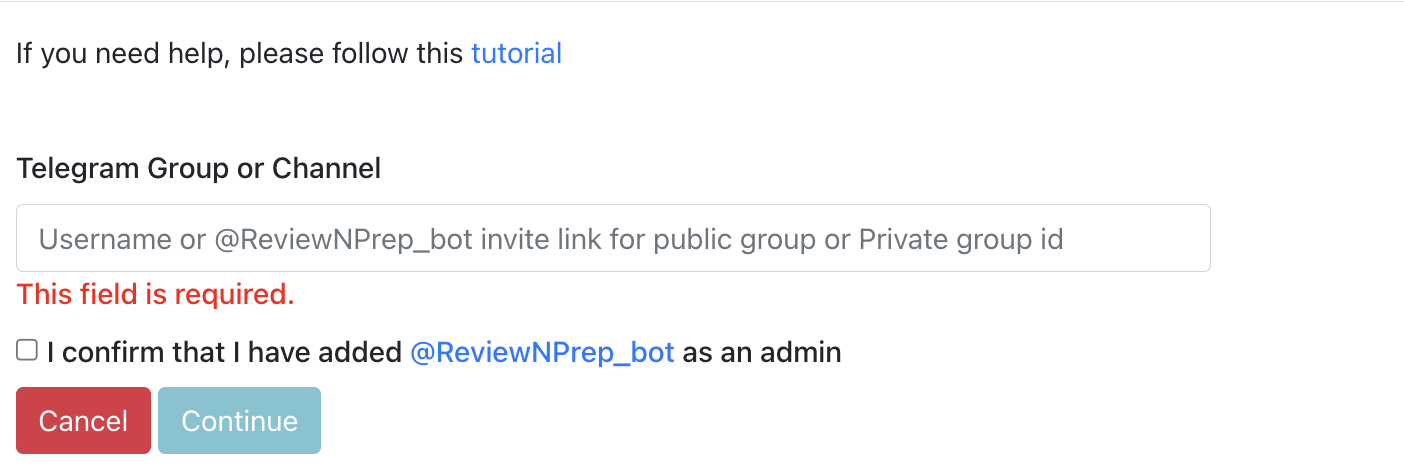
For Public groups, add the user name of the group.
Note: You do not need "@" symbol in the dialog box.
For Private groups add the id of the group. The id of the group can be found in the web version of the Telegram app. Below are the steps on how to get the group-id of the private group:
-
Go to Telegram.org and click on Web-browser in the footer
-
Follow the on-screen instructions from Telegram on how to login
-
Once logged in, go to the private group and note the id from the browser as shown below:

- This numeric id at the end after #- is the group-id.