Connect Facebook Group
To post to the groups, you first need to install ReviewNPrep App to the group.
Install ReviewNPrep to the group.
Login to Facebook and navigate to the Group for which you are an Admin. On the left side, scroll down to Settings.
Scroll down to the Apps section and click on the pencil icon.
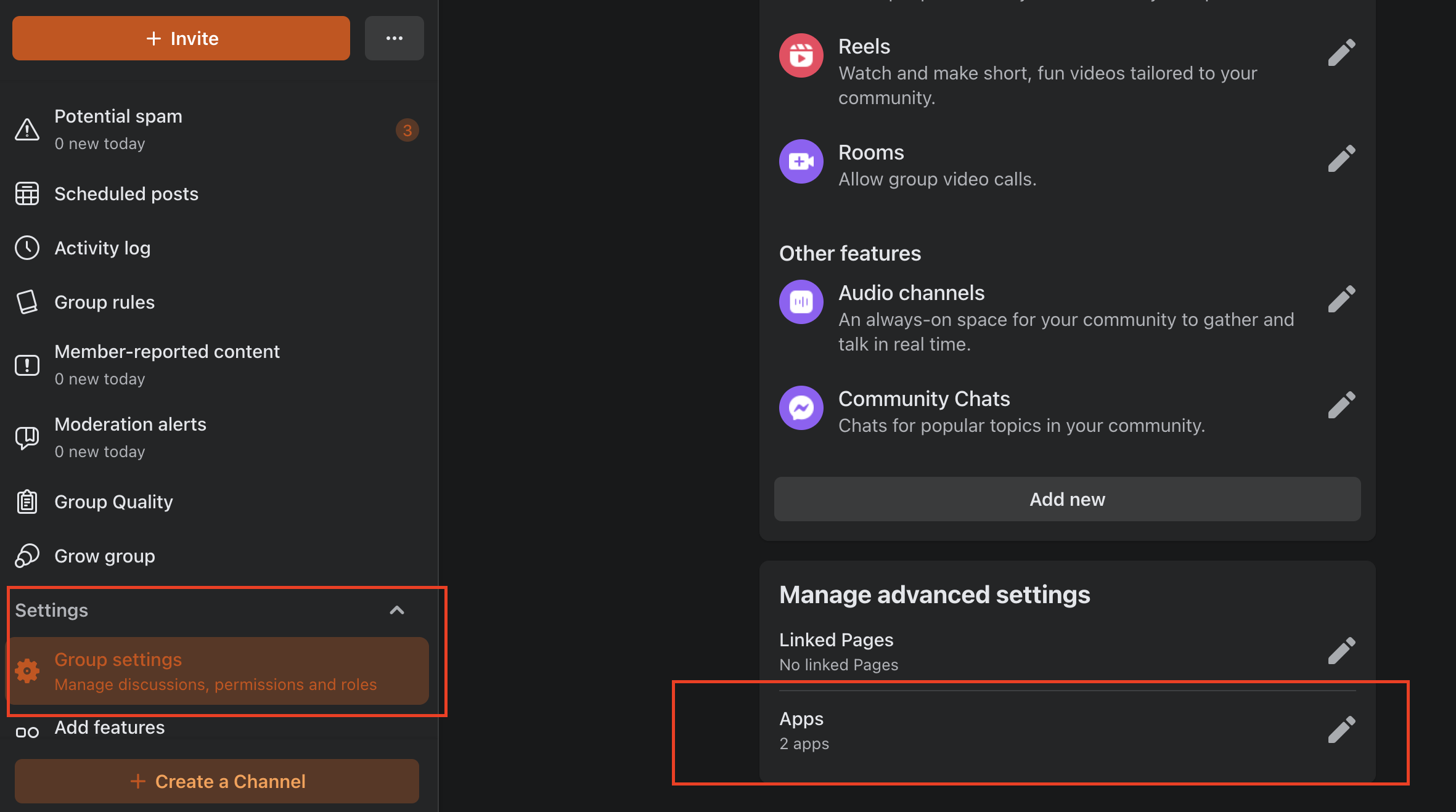
In the popup, click on Add Apps.
Search for "ReviewNPrep" on the left and select the ReviewNPrep App when it shows up on the right. Click on ReviewNPrep and then click "Add"
Make sure to repeat the process for all the Groups you want to manage on ReviewNPrep.
** **
Connect Facebook Group From Admin
-
Navigate back to the admin portal and go to Social Media on the left side menu and expand this submenu.
-
Click Account, select Add New Facebook Group and continue.
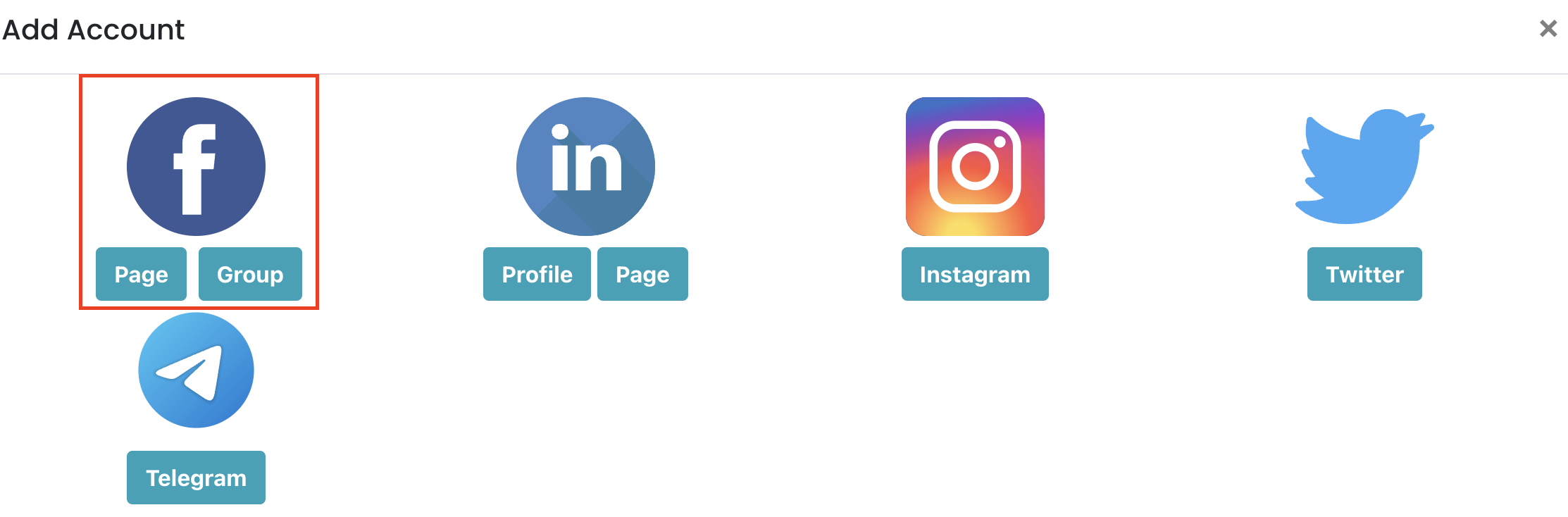
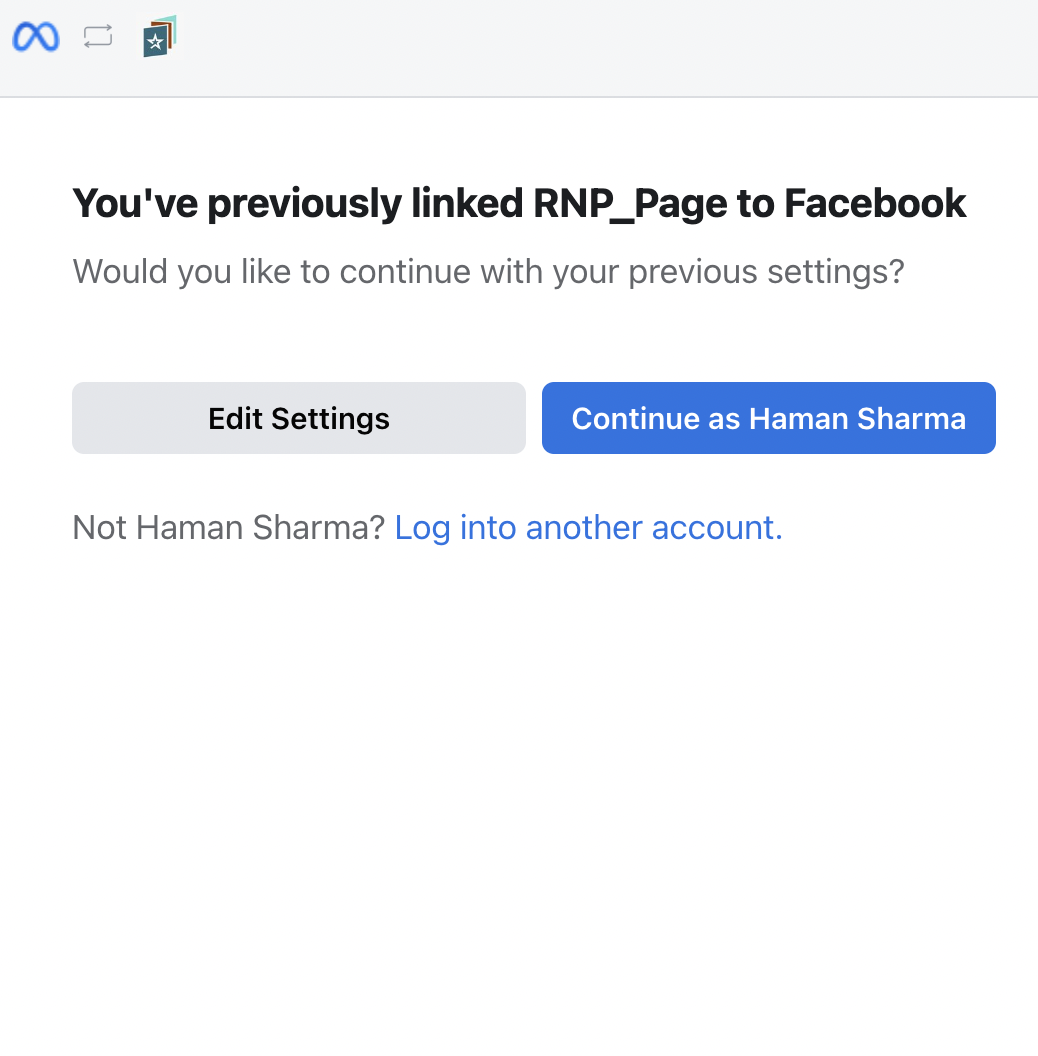
- In the following screen make sure to select Edit Settings instead of Continue
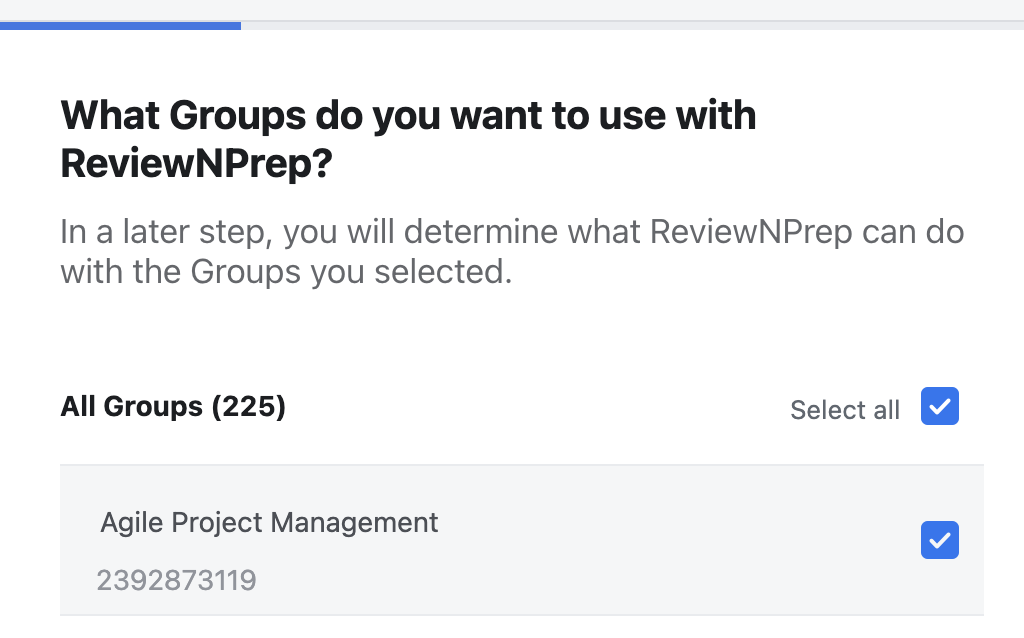
- Make sure to select all the linked Facebook Groups that you want ReviewNPrep to have access to.
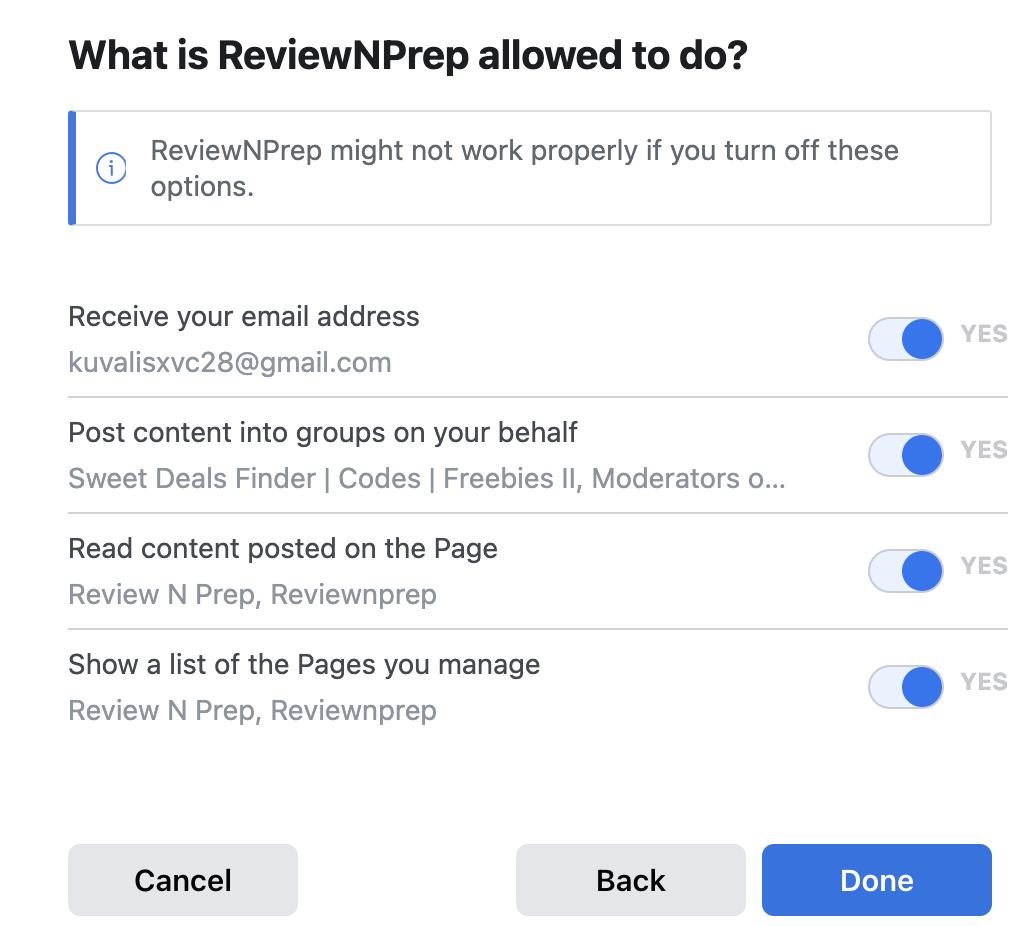
- Make sure that all the permissions are toggled on and click on Done.
-
Once you click on done and then ok on Facebook, you will navigate back to the admin portal with a list of groups you've installed ReviewNPrep app on and the ones you are the admin for.
-
Select all the groups you want ReviewNPrep to post on.
-
A success message will pop-up indicating you've connected the your ReviewNPrep account to post the message.