Connect Facebook Page
- Go to Social Media on the left side menu and expand this submenu.
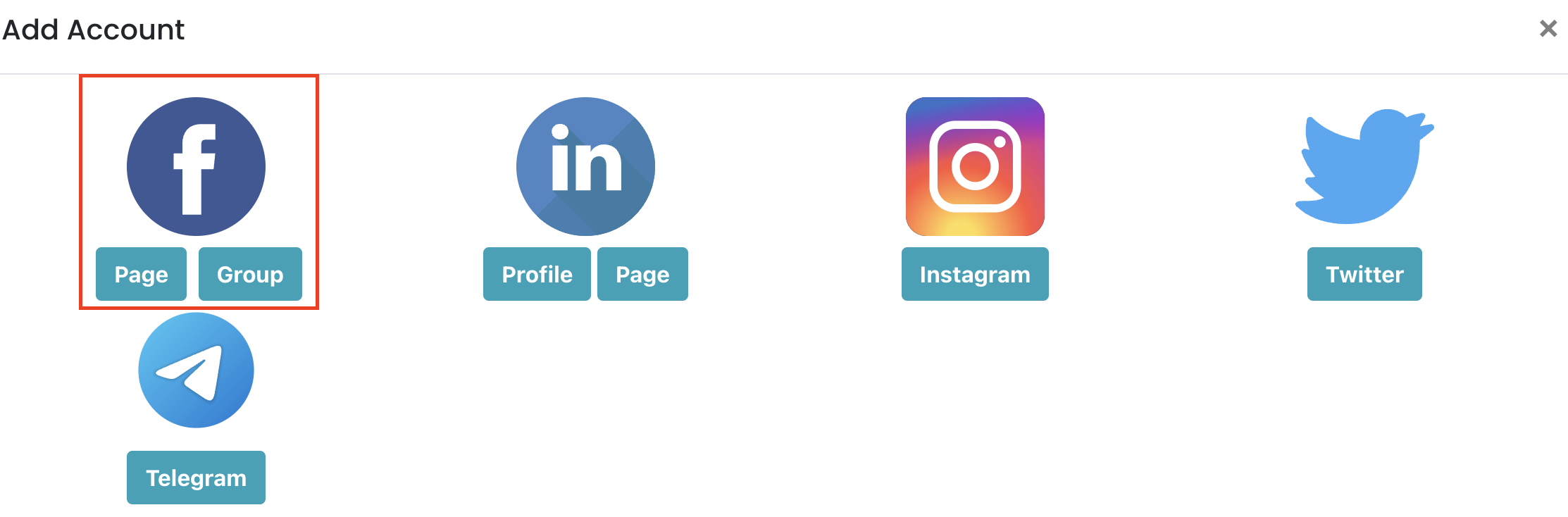
- Click Account, select Add New Facebook Page and continue.
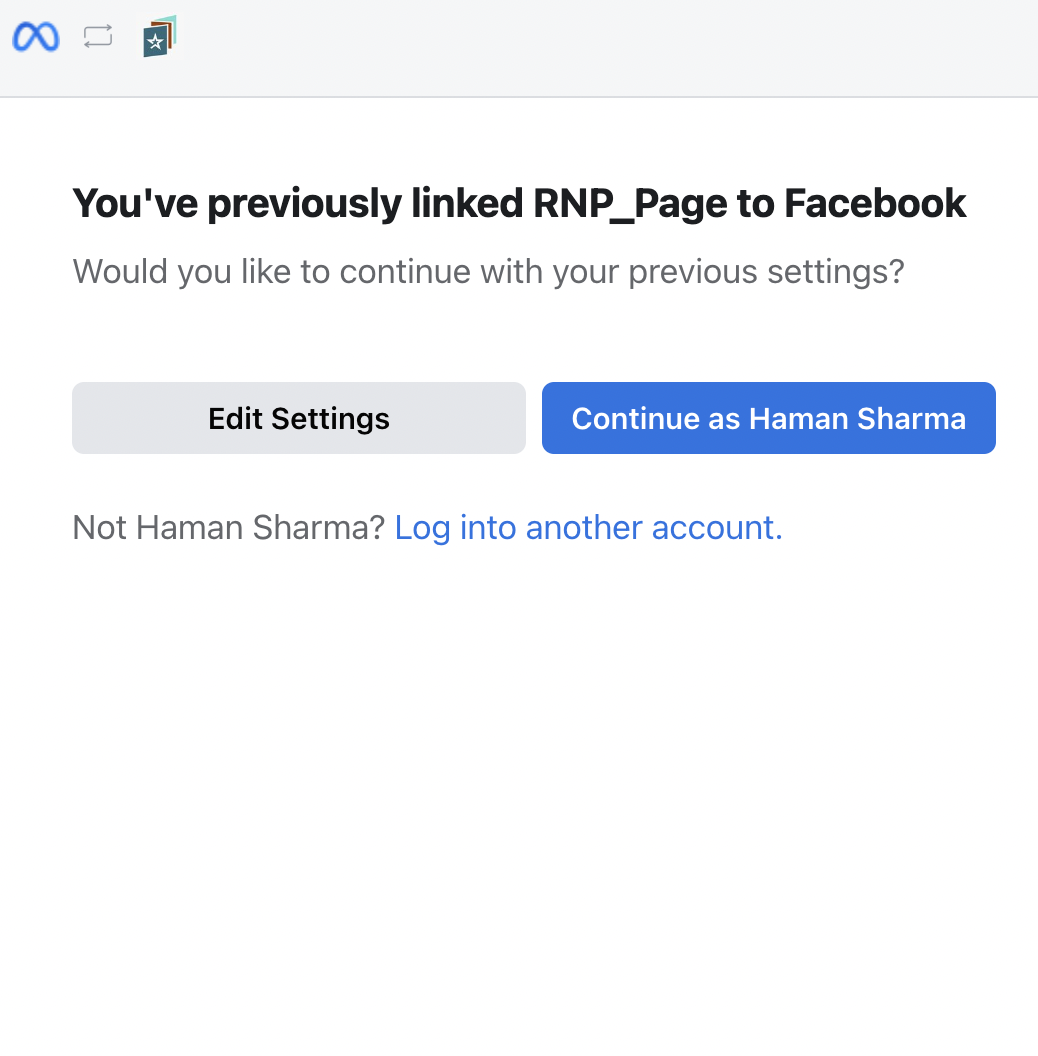
- In the following screen make sure to select Edit Settings instead of Continue
4. Make sure to select all the linked Facebook Pages that you want ReviewNPrep to have access to.****

5. Make sure that all the permissions are toggled on and click on Done.

You are all set to post to your Social Media Page.
In case the above doesn't work, go to Facebook Settings and click on Business Integrations and search for or click on "ReviewNPrep_page".
In the popup, make sure that you've given ReviewnPrep access to all the required permissions for all the linked Facebook Pages that you want to use.