GoDaddy Domain Hosting
If you are using GoDaddy as your domain hosting provider, then you need to follow the next steps to configure your domain settings.
Add a CNAME Record
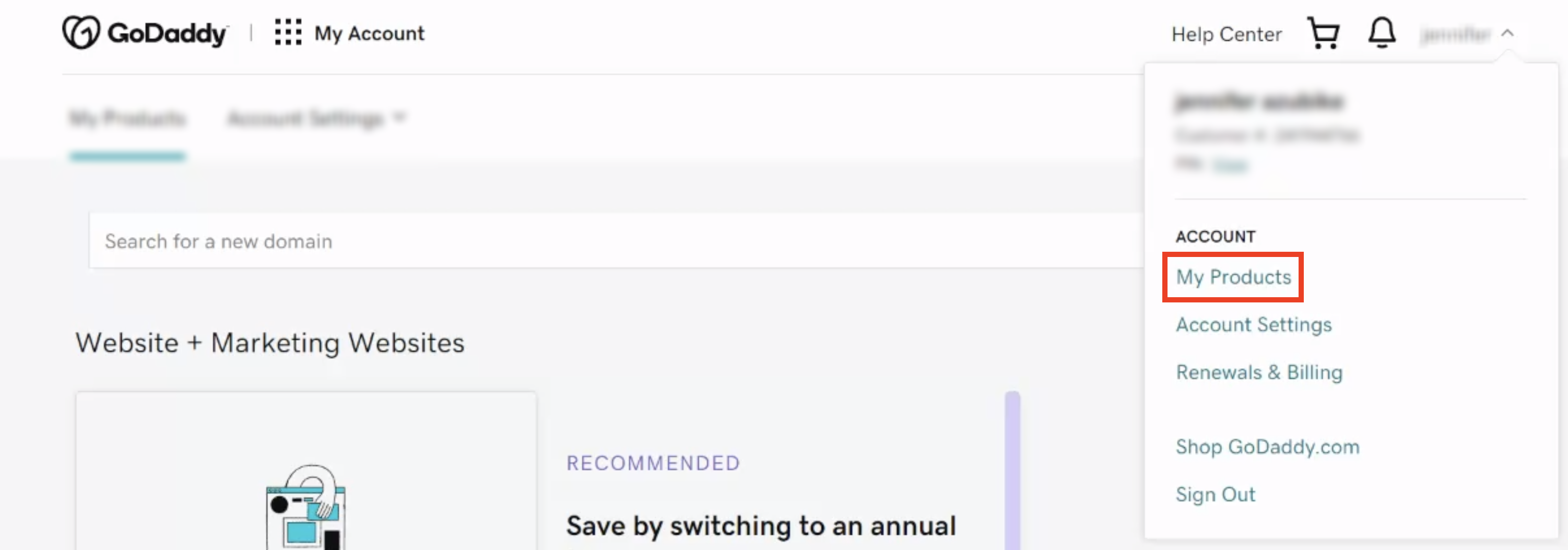
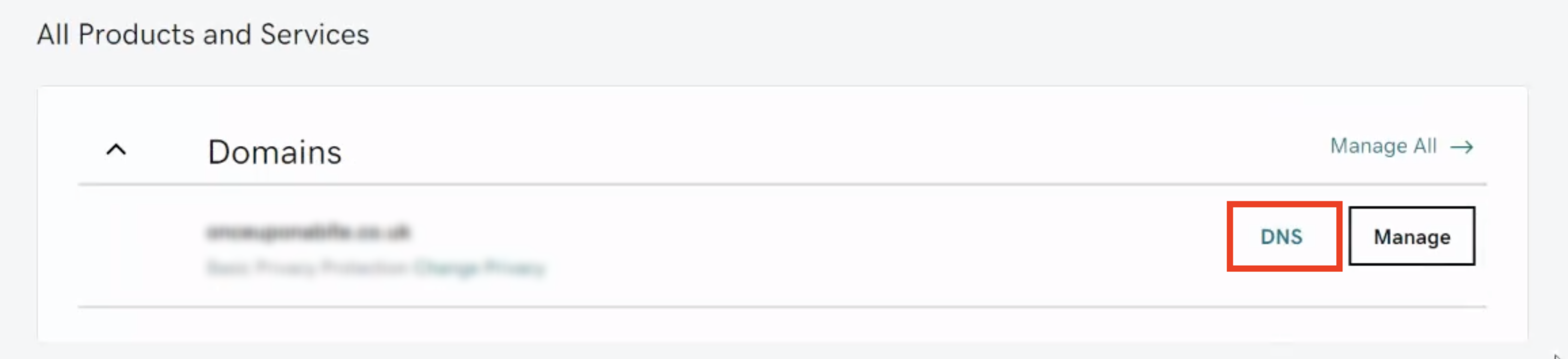
1. Sign in to GoDaddy and navigate to****My products → Domains → DNS.
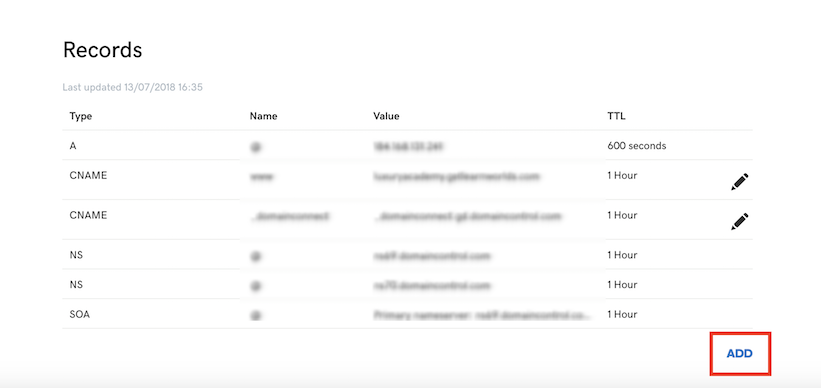
**2. **Click on ADD.
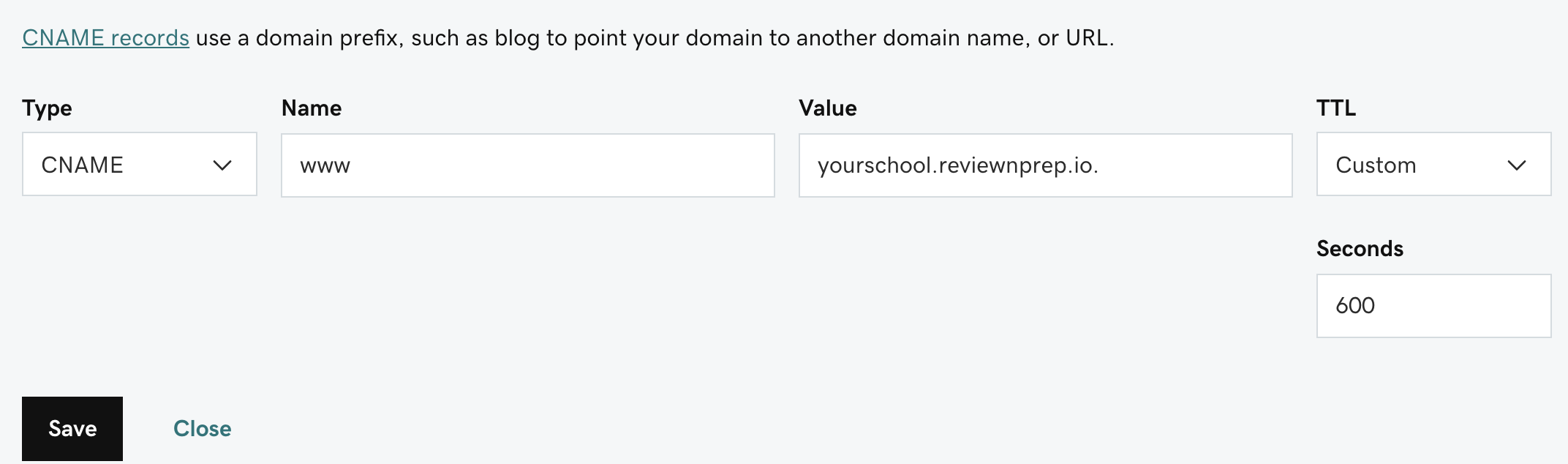
3. In Type, select **CNAME **from the drop-down menu.
4. As **Name **is considered the part of your domain that appears before the naked domain. For example, if your naked domain is yourschool.com and you want to create the subdomain www.yourschool.com, **Name **should be set to www. In case you want to use another subdomain, e.g. xyz.yourschool.com, you have to add xyz instead of www in Host.
5. Insert your ReviewNPrep URL in Value.
**Notes: **
- Make sure to replace yourschool.reviewnprep.io with your ReviewNPrep school URL.
- Do not include the https:// before your ReviewNPrep URL or the / after.
Check if the CNAME record is successfully added
**1. **Go to Google Admin Toolbox.
2. Insert your subdomain free of https:// or / at the end (e.g. www.yourschool.com)
3. If the CNAME record is correct, the ReviewNPrep URL will appear in Target.