Custom Templates
Users can upload their own custom templates using the import option using both the new and the old page builder.
Below are the steps outlined.
-
Click on Add New Page icon at the top and fill in the required page details.
-
Once the page is created, click on Action, followed by Build Page to open the builder with the blank canvas.

** **
New Page Builder
- In the new page builder at the bottom of the page, in the right hand corner, as shown below

- You can copy paste the code ( html and CSS) in the editor, either in the blank canvas or within the existing code already present. The CSS needs to be inline for any customized html template. Hit Save on the top right of the page, after adding the code.
Old Page Builder
1. To activate the old page builder, click on the icon as shown in the image below:

- Click on the Import Icon at the top, in the blank canvas.
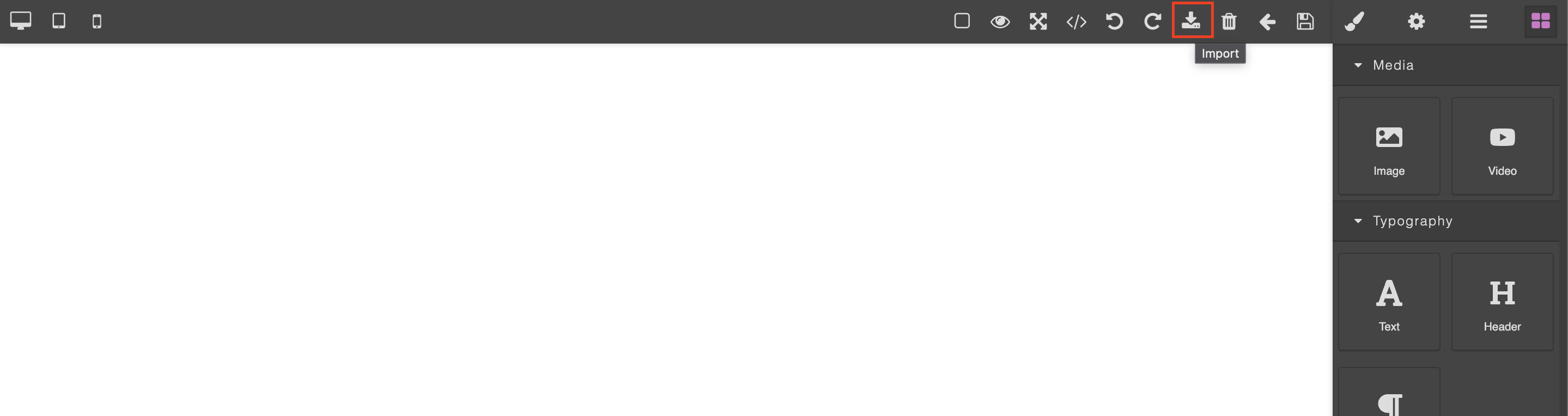
- Once the dialog box open, import the html and CSS. The CSS needs to be inline for any customized html template.
NOTE: The custom javascript might not work during the import option.
- Once you have imported the html-css file, click on Save button.
Remember to Publish the page to see it on the live website.
If you are not sure on how to do it, please contact us from your profile page to get help.