Plans
There are two ways to purchase a plan for creating your custom website. If you are an existing instructor, you can login to your instructor profile (on reviewnprep.com/marketplace) or create a new account on reviewnprep.io.
Existing Instructor on RNP marketplace
This section provides you with a basic idea of how we plan on creating your website by registering your domain with us, publishing your content, and marketing your business with a varied range of plans offering selective features.
To begin with make sure you are logged into your instructor profile.
The URL for the White Label is: https://reviewnprep.com/marketplace/white_label
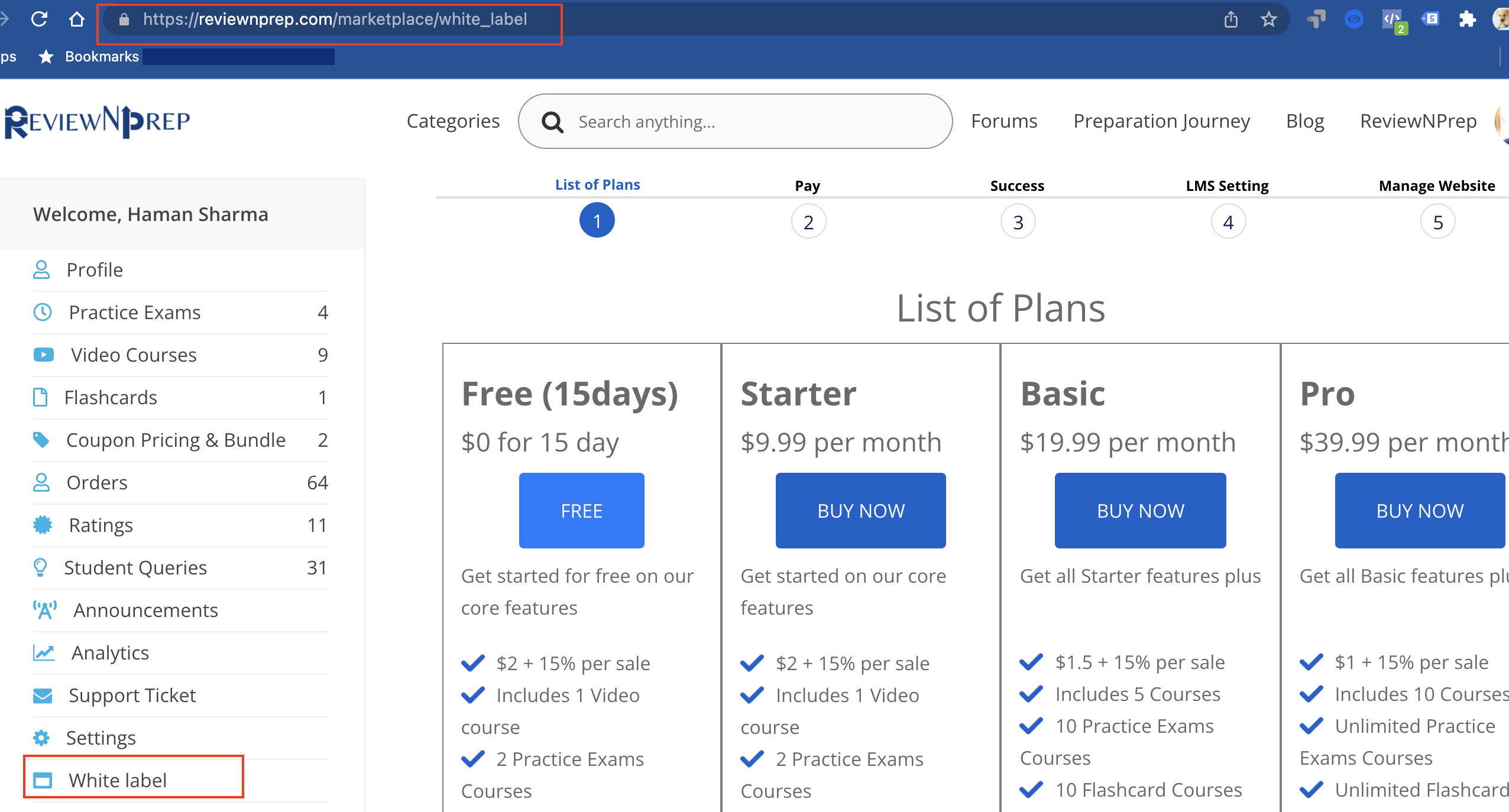
1. List of Plans
Once you have created your instructor account, you should purchase the plan that is right for you. You can select from the Starter, Basic, or Pro plan and proceed further. For Enterprise Plans, please contact sales by filling out the form.
The plans can be directly purchased from ReviewNPrep.io or by logging into ReviewNPrep.com/marketplace.
**You can try our the Free plan for 15days at no cost without providing your credit card details. **
2. Pay
After selecting the plan, you need to provide your credit card details. ReviewNPrep uses Stripe for subscription and we DO NOT store the credit card details. All details are securely stored with Stripe. Additionally, you can remove the credit card details stored with us.
NOTE: If you wish to change the card stored, click on Pay and remove the card you wish you delete. You need to update another card for future transactions.
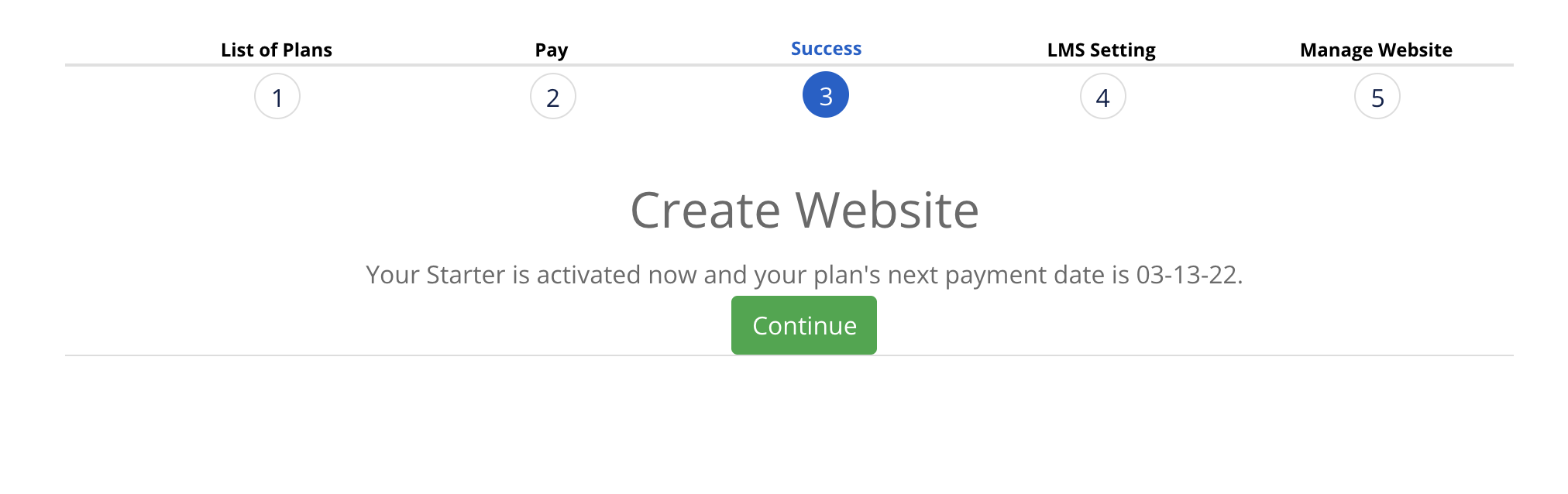
3. Success
Once payment is made, you'd see a success message along with the renewal date as shown below:
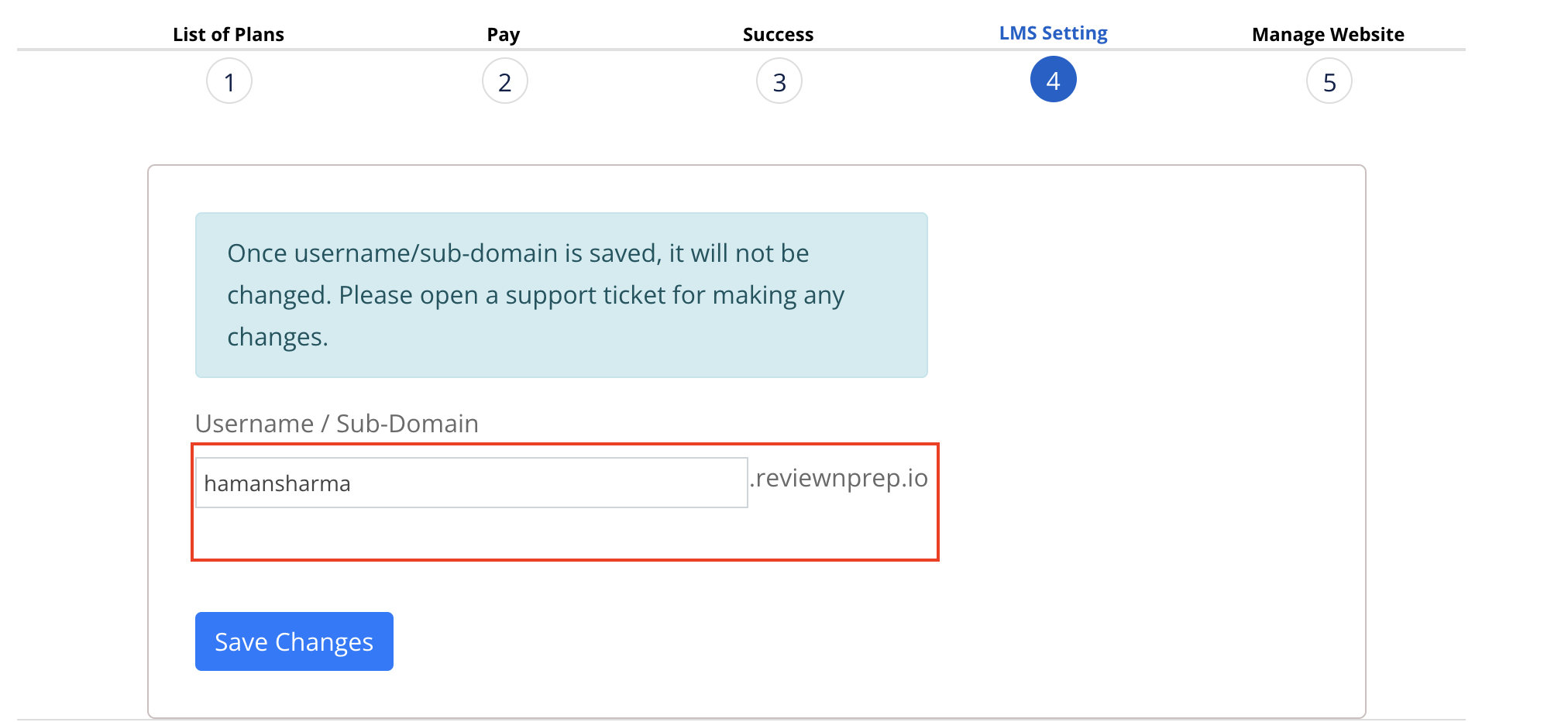
**4. LMS Setting **
****This section helps you to create a subdomain under Reviewnprep by typing in a desired username. This subdomain is assigned only to you. This will be your school name on ReviewNPrep. You need to do this before we can assign your domain name pointed to our application. ** **
At this point, we also create an SSL for your subdomain. If the SSL creation fails, please open a ticket for our support team from your instructor portal. The link is here.
NOTE: Once verified, the subdomain cannot be changed automatically by user. If you desire to change the domain, please open a ticket from your instructor portal. The link is here
** **
5. Manage Website
The "manage website" is the core of your school. Once the domain is pointed, you'd be taken to the admin screen of your school. You'd be able to configure all the settings on this portal.
The URL of the subdomain will also work as the URL of your school. Example - websiteName.reviewnprep.io. Change websiteName to your subdomain name, specified in step4. This can come in handy when your domain has expired or doesn't work for whatever reason.
NOTE: You can login to the admin panel directly using the same credentials as your instructor portal. Please use the link websiteName.reviewnprep.io/admin.
Instructors logged In From ReviewNPrep.io
Follow below steps on how to create the instructor account -
1. Create Account on ReviewNPrep.io
- Users should create a login by accessing this link - https://reviewnprep.io/seller-login
- Wait for the confirmation email from ReviewNPrep to verify your email.
2. Choose Plan
Once you have activated your account, browse to this link - https://reviewnprep.io/#pricing to select the plan of your choice. Add a card to your profile.
This card will be stored with Stripe (not with ReviewNPrep) to enroll you in a monthly recurring plan. For Free plan, no credit card is needed.
Alternatively, if you have a coupon, you can apply the coupon on this link - https://reviewnprep.io/payment-history.
Once your payment is processed, you'd be automatically taken to the link to create a subdomain for your school.
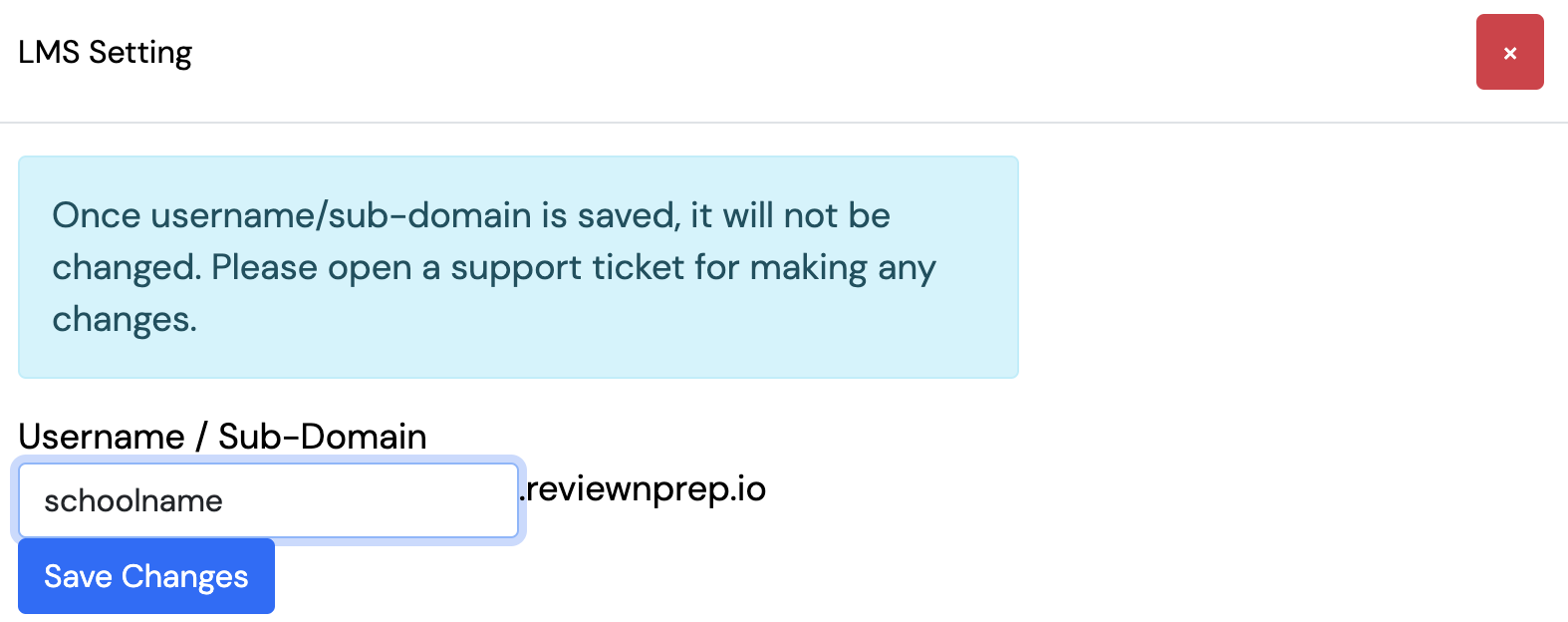
3. LMS Setting
This section helps you to create a subdomain under Reviewnprep by typing in a desired username. This subdomain is assigned only to you. This will be your school name on ReviewNPrep. You need to do this before we can assign your domain name pointed to our application.
At this point, we also create an SSL for your subdomain. If the SSL creation fails, please open a ticket for our support team from your instructor portal. The link is here.
NOTE: Once verified, the subdomain cannot be changed automatically by user. If you desire to change the domain, please open a ticket from your instructor portal. The link is here
4. Manage Website
The "manage website" is the core of your school. Once the domain is pointed, you'd be taken to the admin screen of your school. You'd be able to configure all the settings on this portal.
The URL of the subdomain will also work as the URL of your school. Example - schoolName.reviewnprep.io. Change schoolName to your subdomain name, specified in step3. This can come in handy when your domain has expired or doesn't work for whatever reason.
NOTE: You can login to the admin panel directly using the same credentials as your instructor portal. Please use the link schoolName.reviewnprep.io/admin.